Live monitor
tui-test monitor attaches a live terminal viewer to an active CLI daemon session so you can watch automated commands or AI agents drive a TUI app in real time. Because library sessions run in-process without a daemon, monitor attaches only to CLI sessions.
Observe a session
Section titled “Observe a session”Open or run a session in one terminal, then attach the read-only monitor from another terminal using the same --session name:
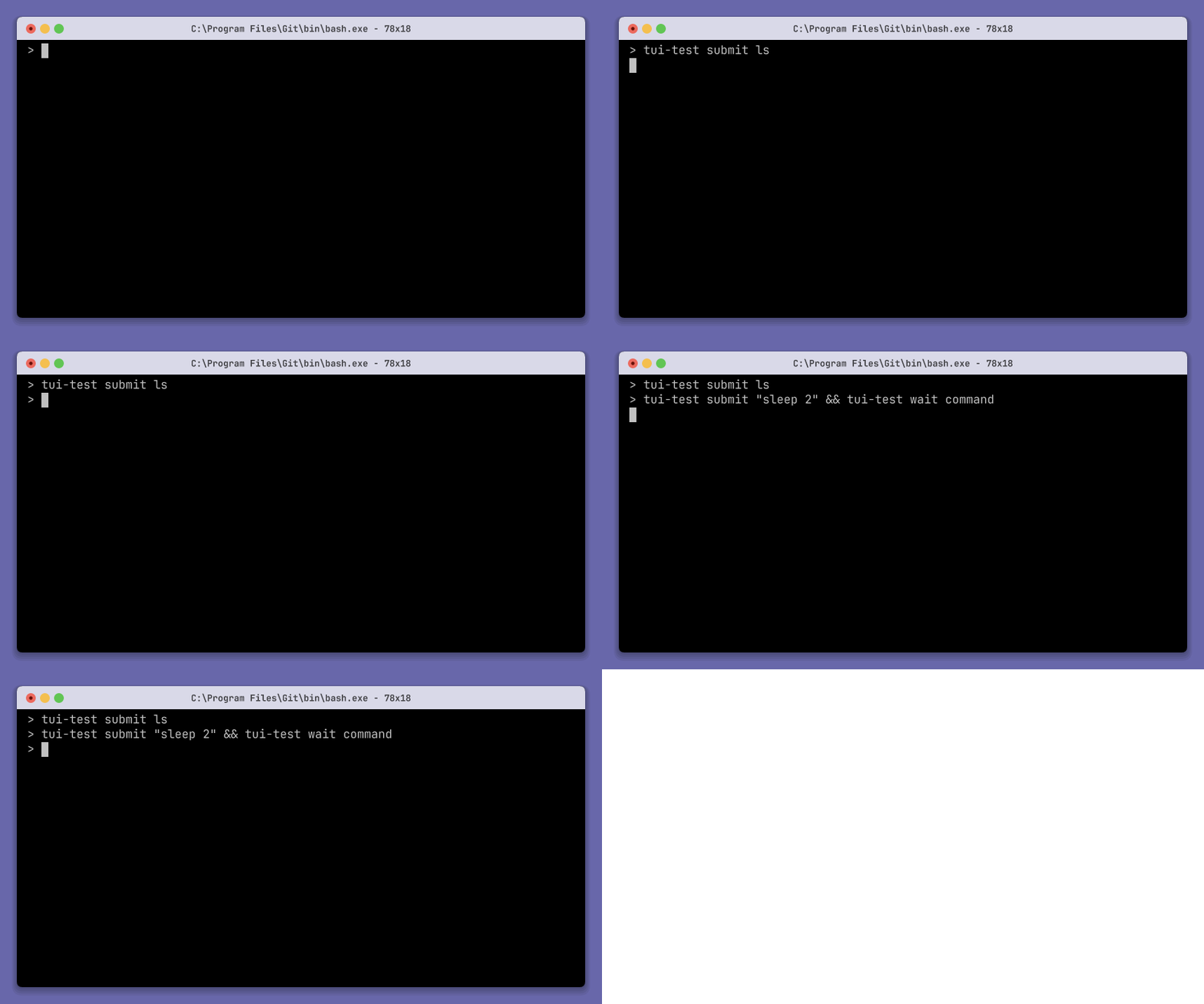
tui-test --session demo run my-apptui-test --session demo monitor| Controlling terminal | Live monitor |
|---|---|
 |
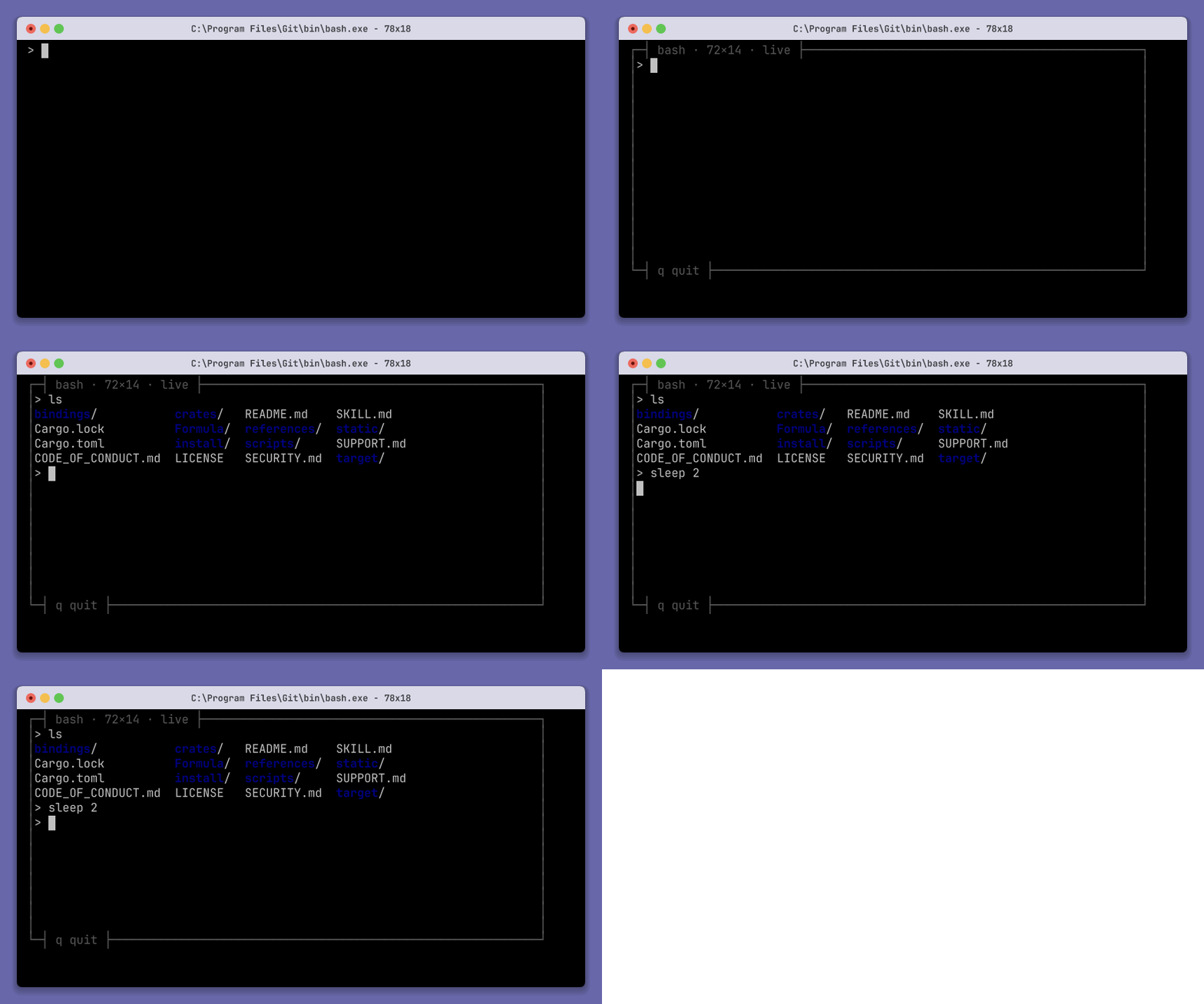 |
Read-only mode mirrors every screen update, locator highlight, window resize, and native scrollback movement (tui-test scroll up/down/top/bottom) without sending local keystrokes or clicks to the session.
Take interactive control
Section titled “Take interactive control”Add --interactive when you want to type, paste, or click directly inside the monitored session, for example to complete an authentication prompt or inspect an unfamiliar menu before resuming scripted commands:
tui-test --session demo monitor --interactiveInteractive mode mirrors the session’s active keyboard, bracketed-paste, and SGR mouse reporting modes so the child application receives input in the exact protocol it negotiated. If another command scrolled the session into native scrollback history, run tui-test --session demo scroll bottom before clicking in interactive mode.
Press Ctrl+] to detach from an interactive monitor (q, Esc, or Ctrl+C exits the default read-only monitor) while leaving the background session running. Run tui-test --session demo close when you want to terminate the session itself.